
What Are You Looking For?

I. Preparations
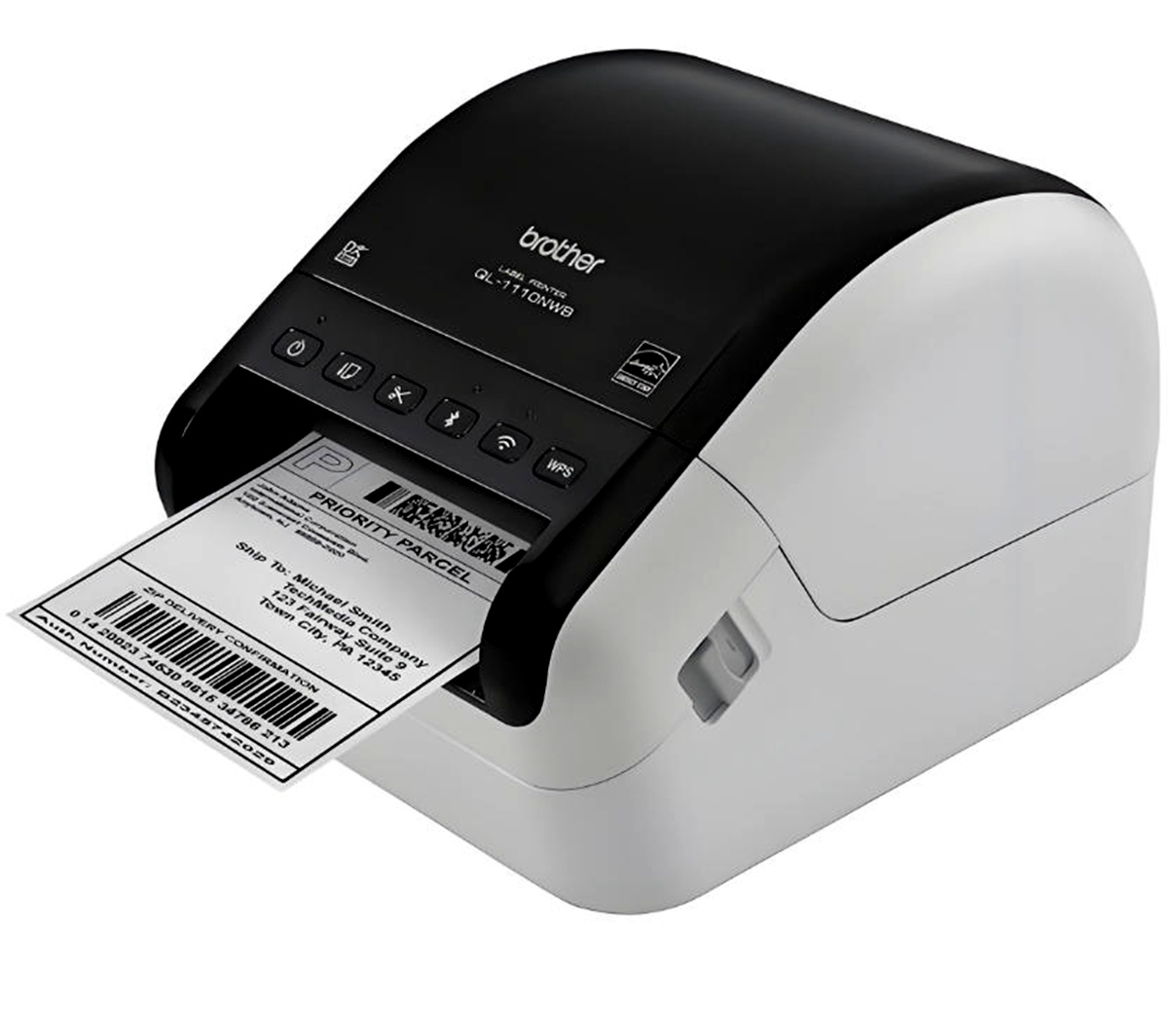
1. Confirm Your Brother Printer ModelII. Printing Address Labels with P-touch Editor (Taking QL Series as an Example)
Step 1: Open P-touch EditorIII. Printing Labels with Word or Excel (For Ordinary Brother Printers)
If you are using A4 adhesive label paper, you can quickly print in batches through Microsoft Word’s “Mail Merge” function: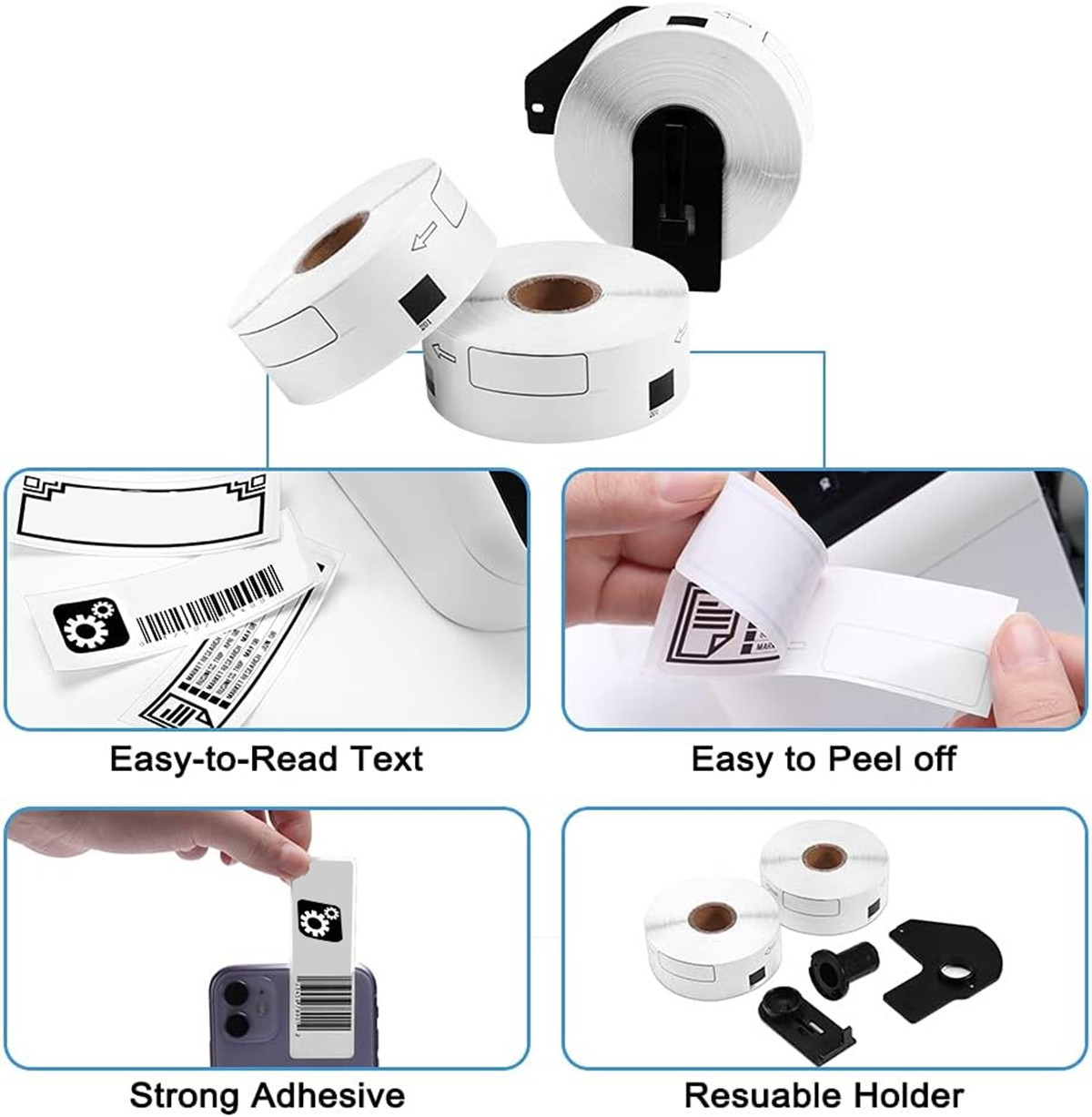
IV. Tips
1. Ensure Proper Connection between Printer and Device: Whether printing via computer or mobile device, make sure the connection between the printer and the device is stable. If using a wireless network, ensure both the device and printer are on the same network.V. FAQs
Q: What if the label position is offset during printing?Q: Can I print address labels using a mobile phone?
A: Yes! Download the official Brother App (such as Brother Mobile Connect) and send print tasks directly from your mobile device via Bluetooth or Wi-Fi.Q: Why is the label print blurry or fading?
A: For QL series using thermal printing, ensure the use of original DK ribbons; for ordinary printers, it’s advisable to use high-quality ink cartridges/toner and select the “High Quality” print mode.


 Lianqian Neighborhood, Siming District, Xiamen, Fujian,
China 361008
Lianqian Neighborhood, Siming District, Xiamen, Fujian,
China 361008 Tel: 0086-13395056294
 Email: sinitan@foxmail.com