
What Are You Looking For?

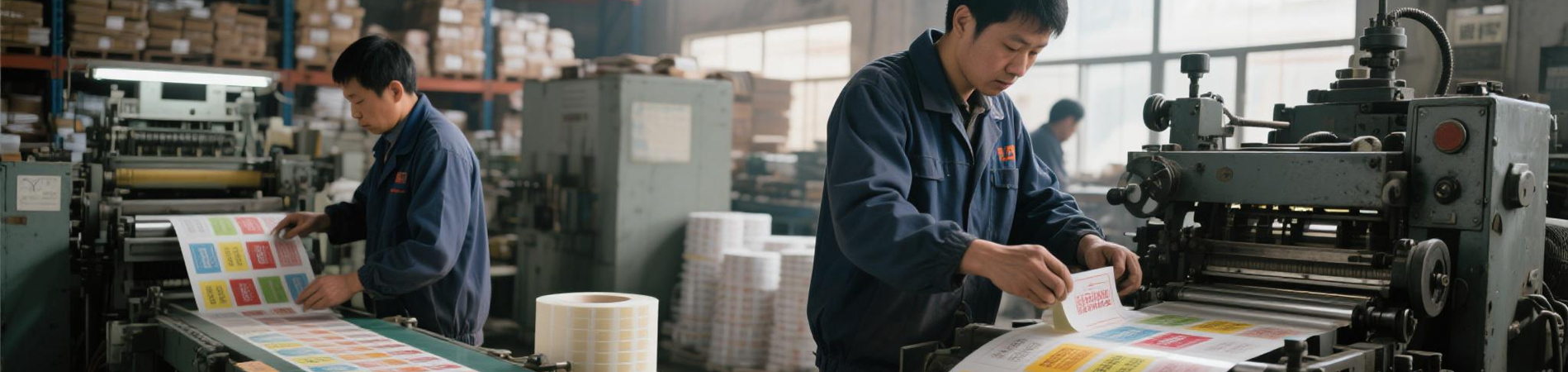
I. Before You Print: What You Need to Prepare
1. The Right Self-Adhesive Label Paper2. A Printer That Supports Label Printing
• Home Inkjet/Laser Printer: Suitable for printing A4 sheet labels (check the manual to see if it supports thick paper)3. Design and Layout Software
• Free Tools: Word, Excel, WPS (with built-in label templates)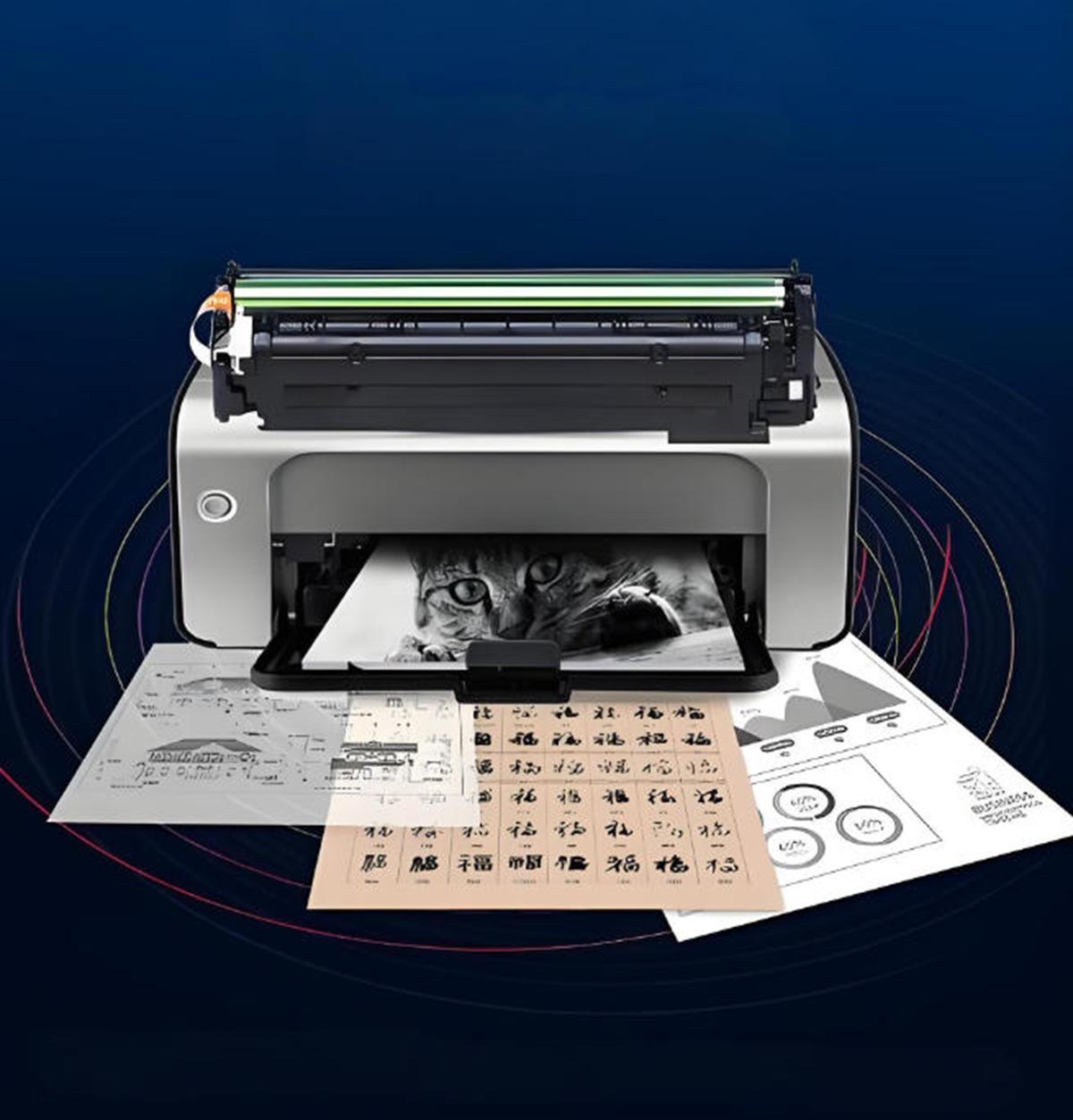
II. Four Steps to Print Labels (Using an A4 Home Printer as an Example)
Step 1: Choose the Label Size & Download the TemplateStep 2: Design Your Label Content
• Add text (product name, barcode, price, date, etc.)Step 3: Properly Load the Paper & Printer Settings
• Place the A4 label paper with the print side up (usually the smooth side) into the paper tray;Step 4: Print & Cut (if necessary)
• After printing, let the ink/toner dry completely for 1–2 minutes;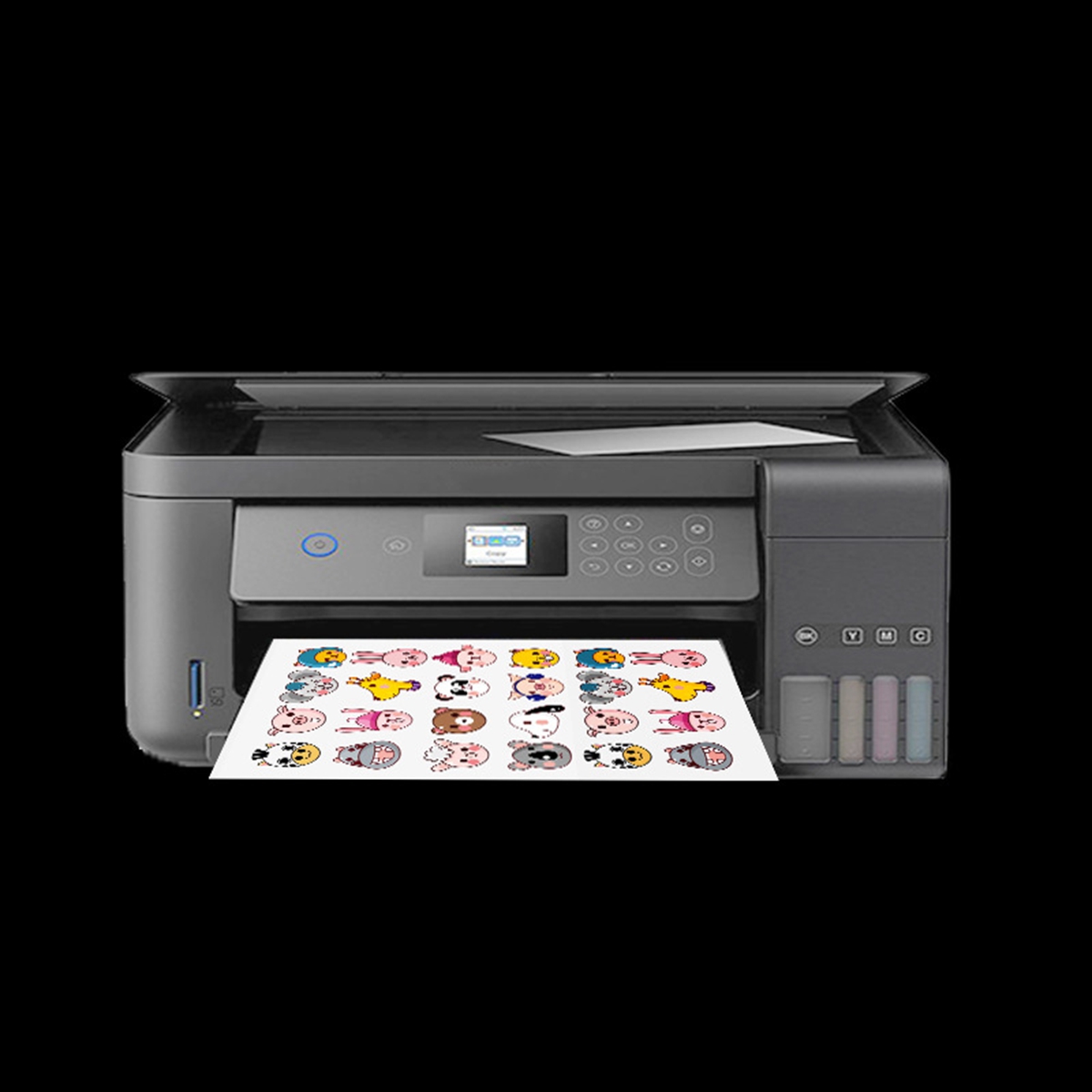
III. Common Issues & Solutions
• Blurry characters, ink bleeding: This might be due to using an inkjet printer with non-coated paper. The solution is to switch to coated self-adhesive label paper.• Label jamming in the printer: This might be due to the paper being too thick or curled. The solution is to insert only 1–2 sheets at a time and select "Manual Feed."
• Print position offset: This might be due to an incompatible template. The solution is to re-download the template that matches your printer's brand and model.
• Adhesive melting (laser printer): This might be due to the label not being heat-resistant. The solution is to purchase label paper marked as "Laser Compatible."
• Barcode not scanning: This might be due to low resolution or too small size. The solution is to ensure the barcode width is ≥2cm and use a professional barcode font.


 Lianqian Neighborhood, Siming District, Xiamen, Fujian,
China 361008
Lianqian Neighborhood, Siming District, Xiamen, Fujian,
China 361008 Tel: 0086-13395056294
 Email: sinitan@foxmail.com